You can do this. If you can open an email, you can do this. Take it one step at a time. Each step tells you exactly what to click and what you should see.
- What you're getting (and why)
- Before you start
- Which website does my doctor use?
- Download from MyChart
- Download from Dignity Health and other Oracle Health / Cerner sites
- Download from athenahealth
- Download from any other website
- Find the file on your computer
- Put the file into HEM
- If something didn't work
- What the download leaves out, and how to get the rest
1. What you're getting (and why)
Most doctors and hospitals have a website where you can see your health information. It's called a patient portal. (You may know it as "MyChart" or "my patient account.")
Every patient portal is required to let you download your records as a special file. People can't read that file, but HEM can. HEM opens it and files everything for you: your visits, medications, allergies, test results, doctor's notes, and insurance.
You do this once for each doctor's office or hospital. Later, you can download again to bring in anything new. HEM never adds the same thing twice.
2. Before you start
- Make a list of where you've been seen. Write down each doctor's office and hospital, for example "Dr. Smith's office" or "City Hospital." Each one may have its own website.
- Have your login ready for each patient portal: your username (often your email) and password.
Forgot it? On the portal's login page, click Forgot username or Forgot password. If you never signed up, call the office and say: "I'd like to sign up for your patient portal." - Use a computer (not a phone) for the download. The file needs to end up on the same computer as HEM.
3. Which website does my doctor use?
Log in to the patient portal and look at the top of the page for one of these names or logos:
Oracle Health / Cerner
Used by Dignity Health, CommonSpirit and many hospitals. Has a "Results & Records" menu.
Something else
FollowMyHealth, healow, NextGen, eClinicalWorks, or a name you don't see here.
4. Download from MyChart
This example is from UNLV Health. Your MyChart may have different colors, but the buttons are the same.
- Log in to MyChart. Click the blue menu button ☰ near the top left.
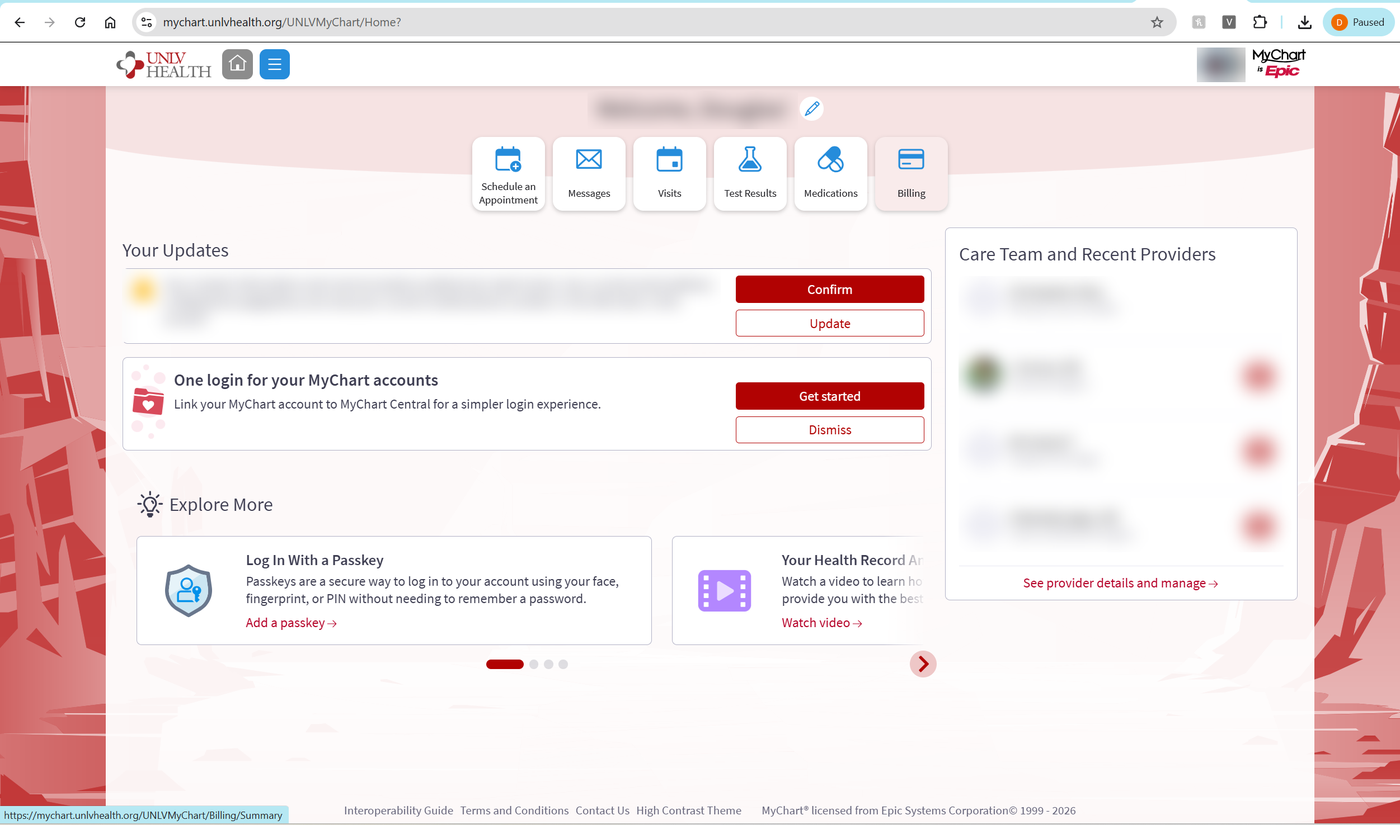
The menu button is the blue square with three lines, next to the house icon. - In the search box at the top of the menu, type Sharing, then click Sharing Hub.
(If you don't see it, type Download instead and click Download My Record.) - At the bottom of the Sharing Hub, click Download health and visit summary.
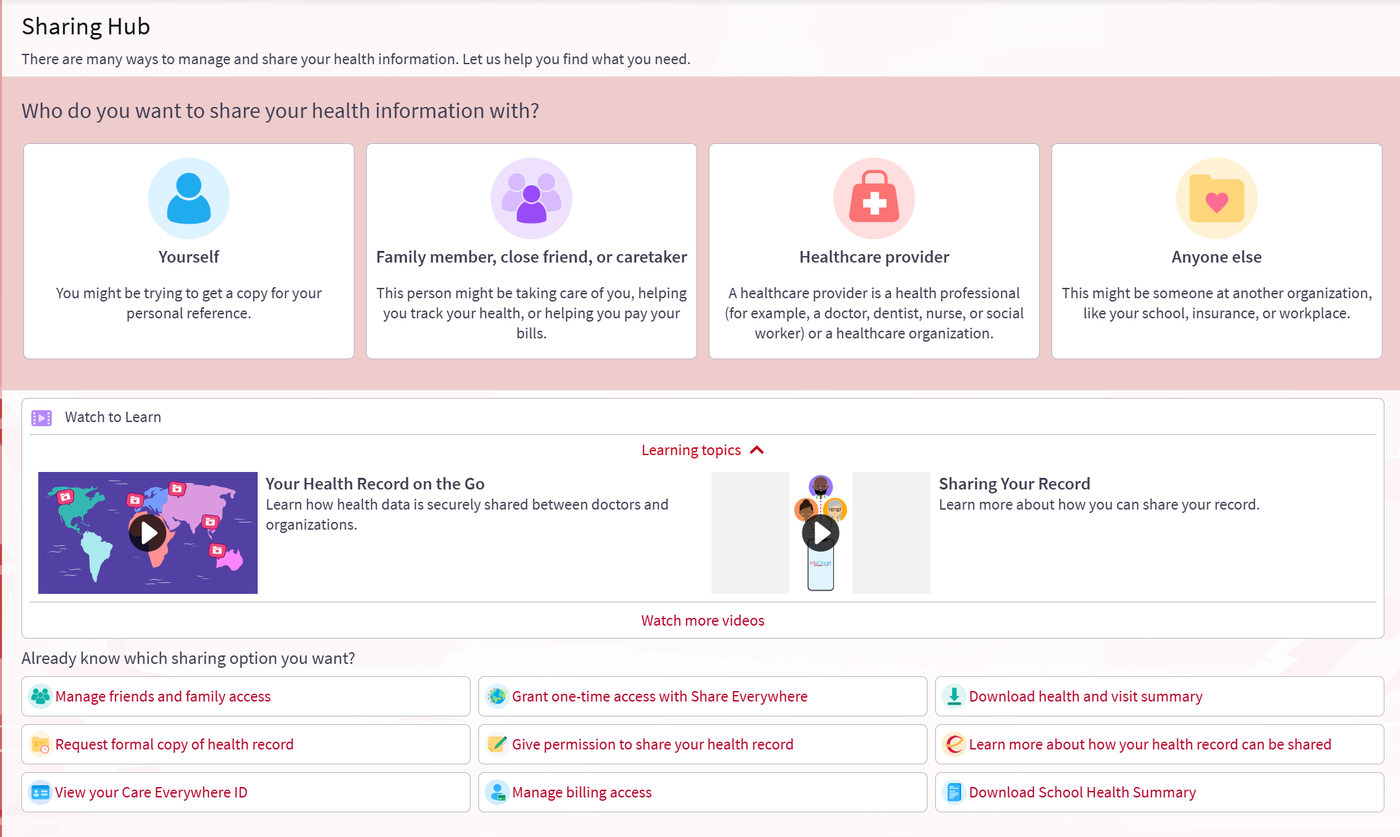
It's in the bottom-right corner, with a green arrow. - When it asks which visits, choose All visits (or the widest date range it offers). If it asks for a format, choose the one that says XML or Both.
- MyChart may need a few minutes to get the file ready. It will show up on the Requested Records page. MyChart may email or text you when it's ready.
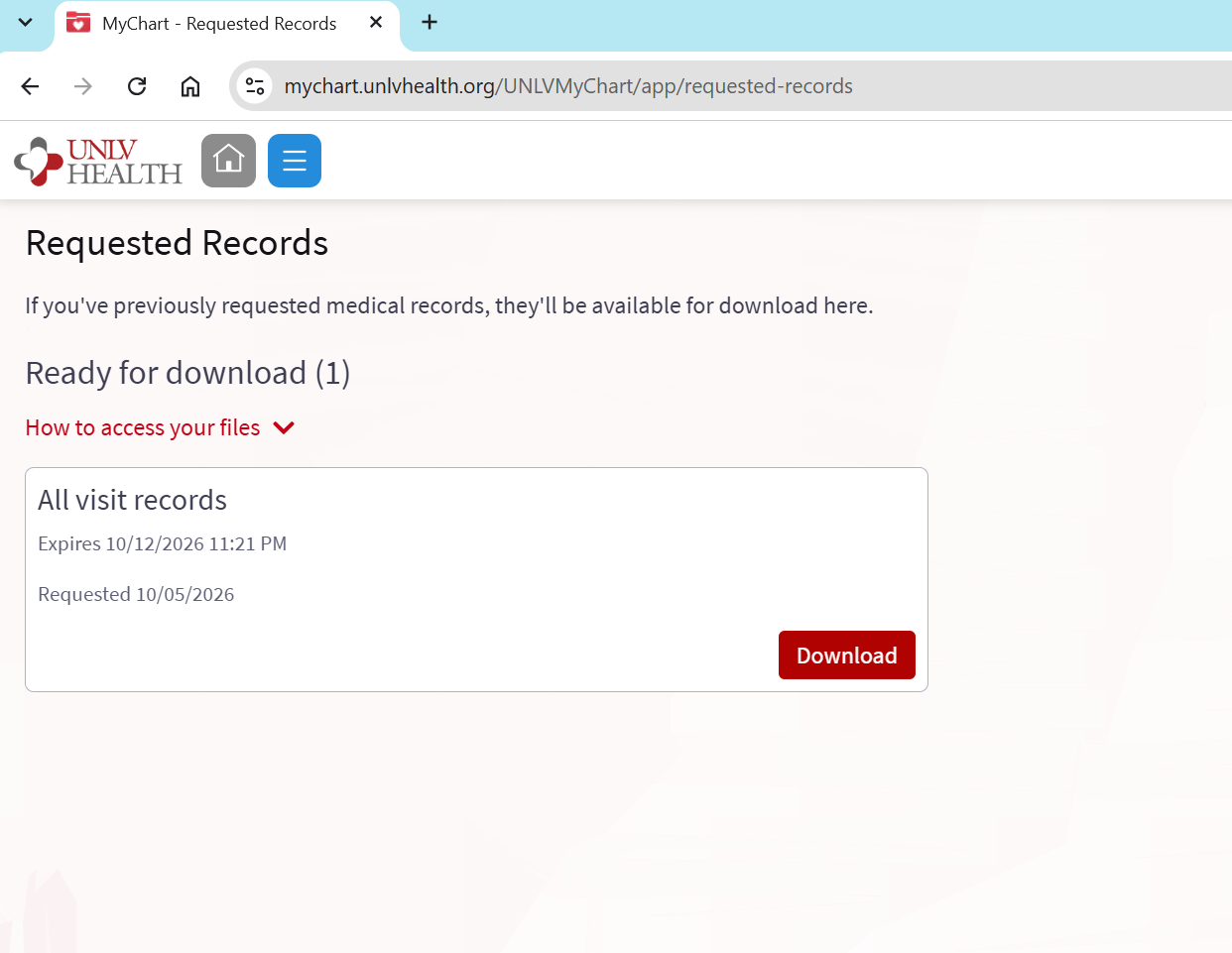
When it says "Ready for download," click the red Download button. - Click Download. A .zip file goes to your computer's Downloads folder.
A file with a name like HealthSummary_Oct_05_2026.zip in your Downloads folder.
Now go to Find the file on your computer.
5. Download from Dignity Health and other Oracle Health / Cerner sites
- Log in to the portal. Click Results & Records at the top.
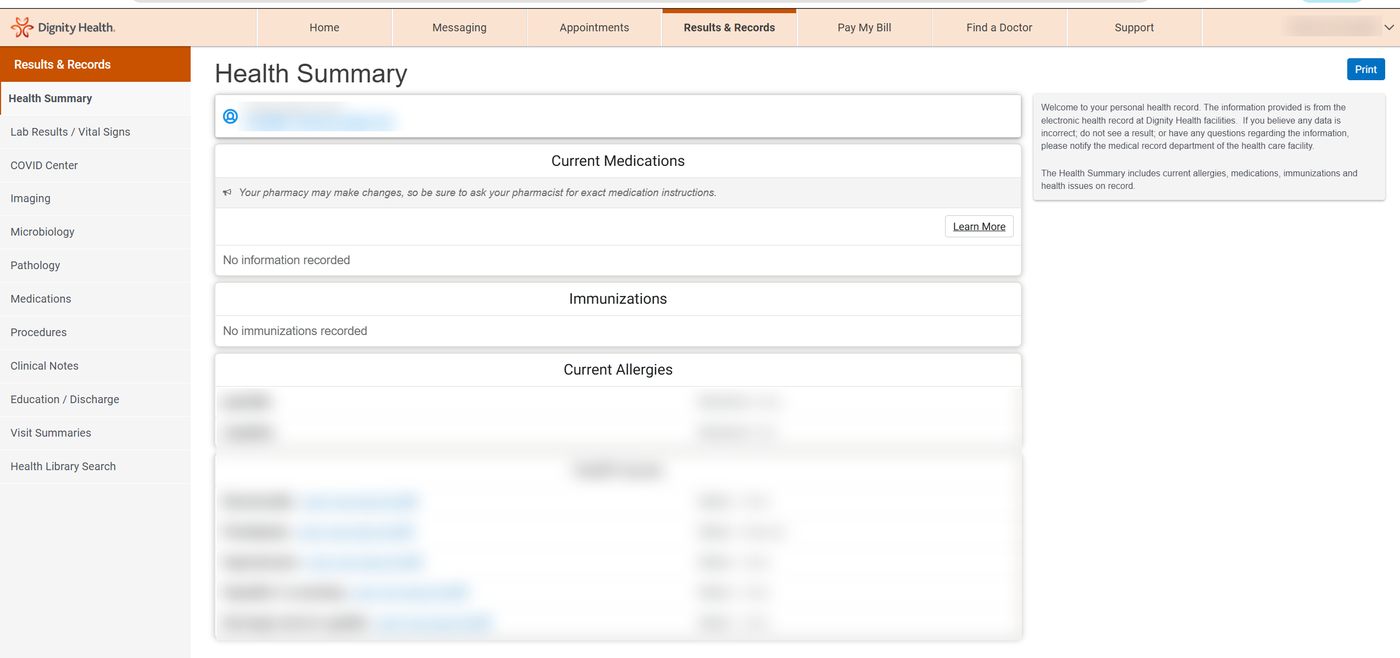
The left side has a list: Health Summary, Lab Results, Imaging, Pathology, Clinical Notes, Visit Summaries… - Click Health Summary or Visit Summaries on the left. Look for a Download button (sometimes it's next to Print, or on each visit).
- A box opens called Download Your Health Information. Click Download Codified.
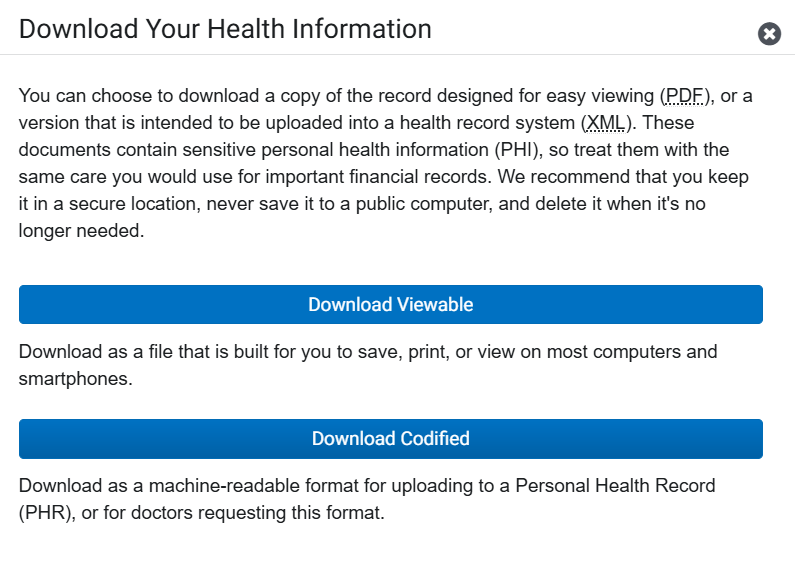
Choose Download Codified. That's the version HEM reads. ("Viewable" is a PDF for your eyes only.) - Save the file. If there's one download per visit, do this for each visit, especially hospital stays and surgeries.
A .xml or .zip file in your Downloads folder.
Now go to Find the file on your computer.
6. Download from athenahealth
- Log in to the athenahealth patient portal.
- Look for My Health, Medical Records, or Health Record in the menu.
- Look for a button that says Download, Export, or Data Portability. Choose all dates if it asks.
- If it asks for a format, choose XML or Both (not "PDF only").
A .zip file in your Downloads folder, often with the office name in it.
7. Download from any other website
Every certified patient portal has a download. It just goes by different names. Look in the menus for any of these words:
| Look for… | Then choose… |
|---|---|
| Download · Export · Share · Health Summary · Download My Record · Data Portability · View, Download, Transmit · Continuity of Care Document (CCD) | XML, C-CDA, CCD, Codified, or Both, and all visits / all dates |
8. Find the file on your computer
- Your downloaded file is almost always in the Downloads folder.
- Don't open it and don't unzip it. HEM opens it for you. A .zip file is fine exactly as it is.
- Optional: rename it so you remember where it came from, like UNLV records Oct 2026.zip.
9. Put the file into HEM
- Open Health Expense Manager. In the menu on the left, click Medical Records.
- Click the green ⤓ Import Records button.
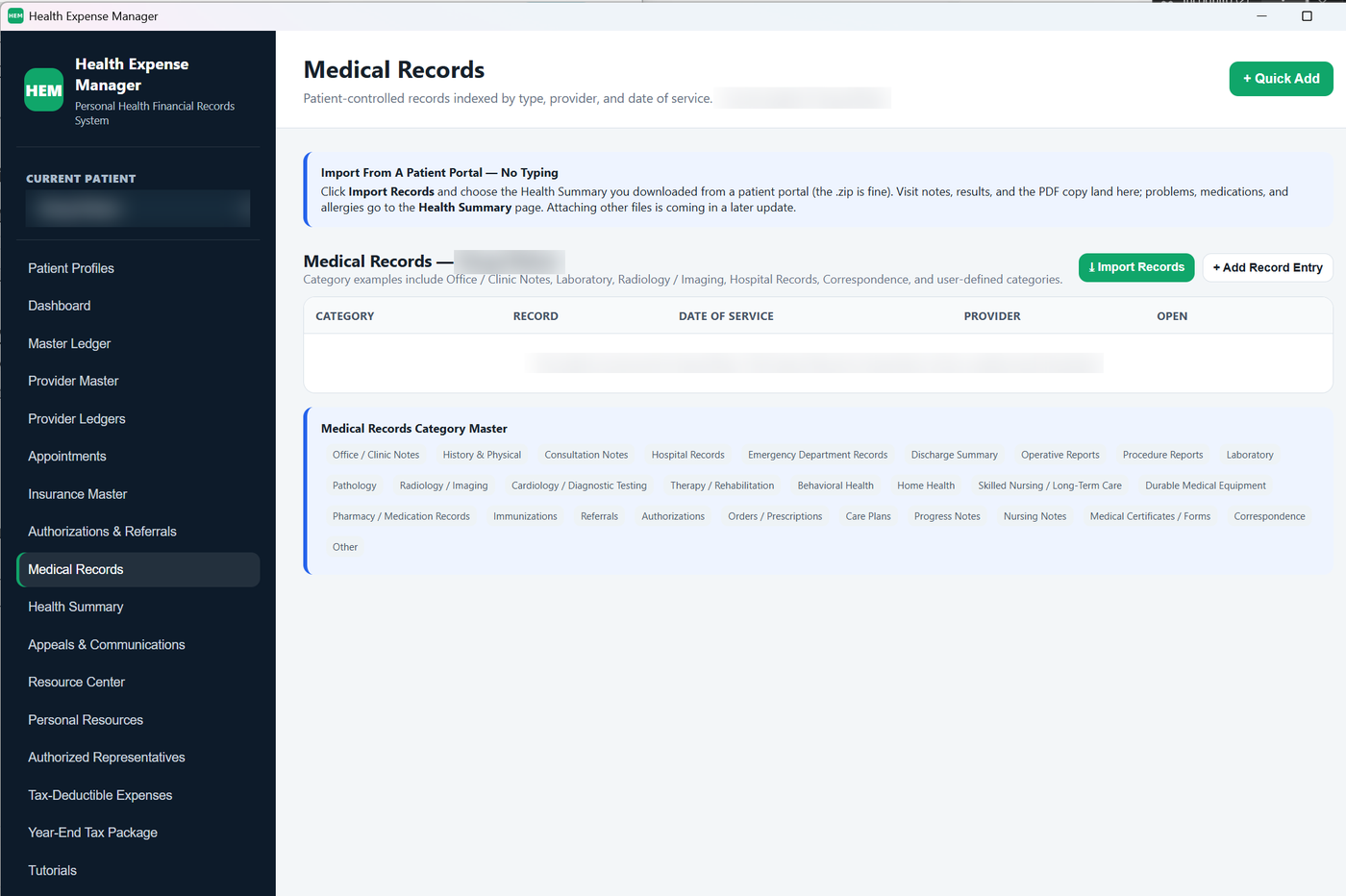
The green Import Records button is on the right, above the list. - Click Choose File…. A window opens. Click Downloads on the left side of that window, click your file once, then click Open.
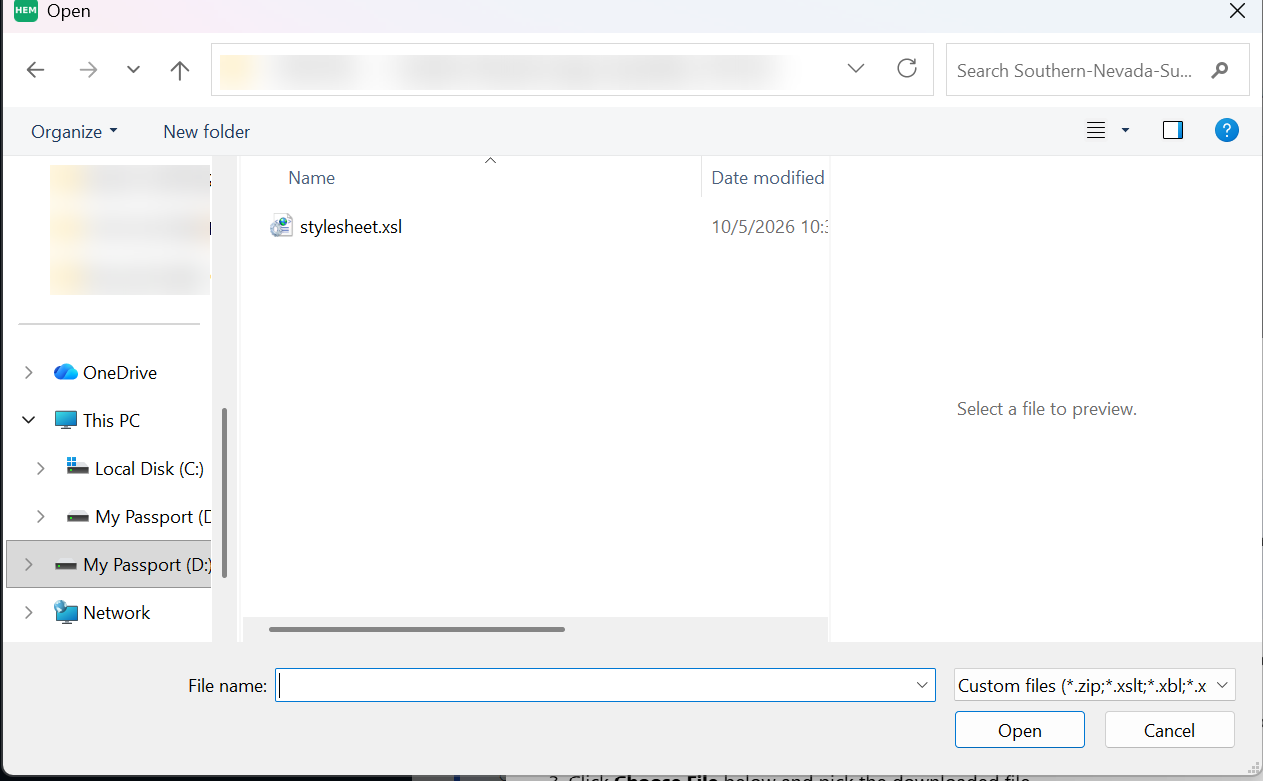
Pick the .zip (or .xml) you downloaded. - HEM reads the file and shows a Ready To Import screen. Check it:
- "Put these records in this patient's file": make sure the right person is picked. (If you manage family members, choose the right one.)
- Visits: checked visits go on your Master Ledger, waiting for the bill. Phone calls and refills are unchecked; they go to Communications instead.
- Provider and Insurance: leave checked unless they're already in HEM under another name.
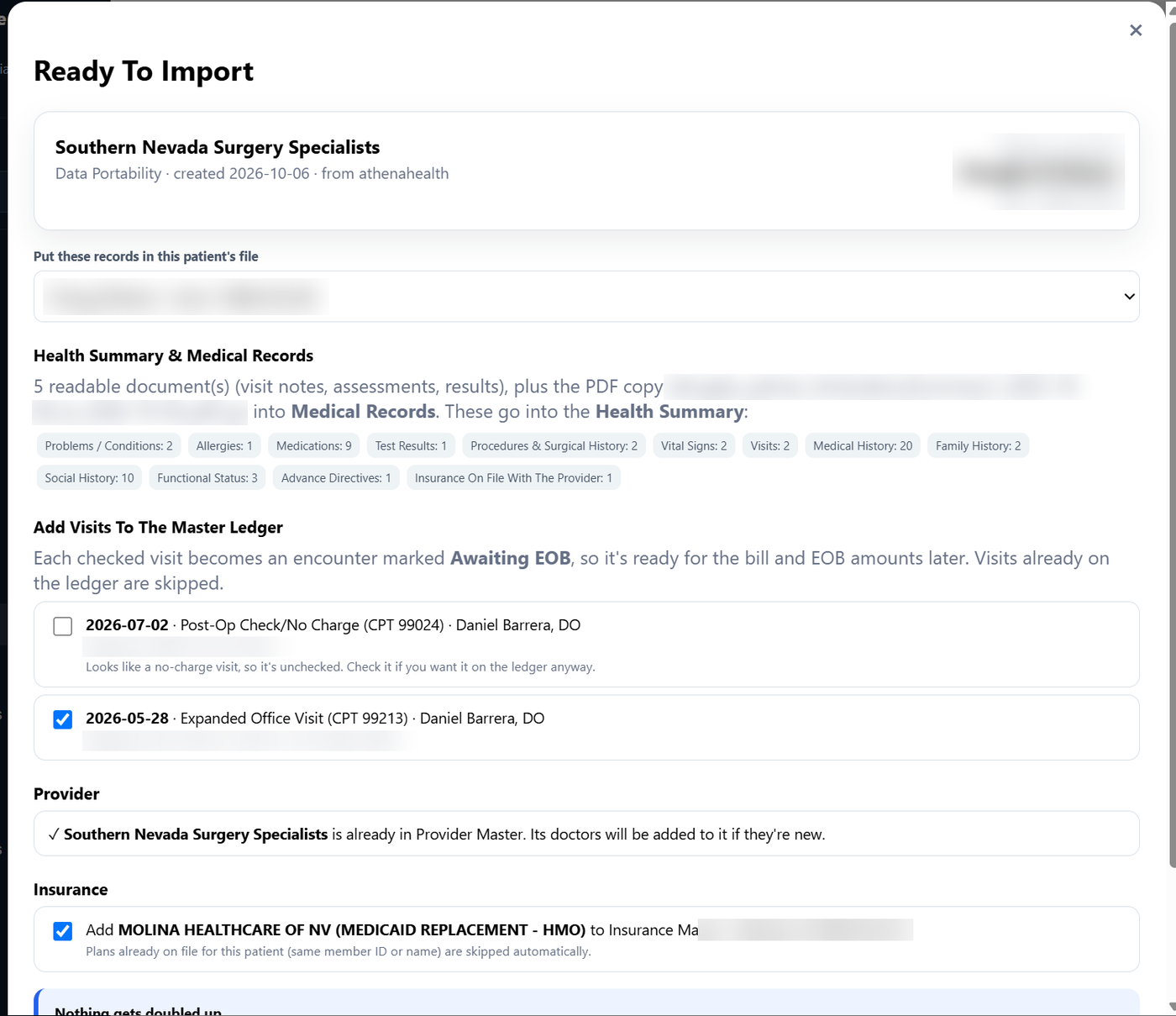
Everything is explained on the screen. When it looks right, scroll down. - Scroll to the bottom and click Import Into Health Expense Manager.
A box that says Records Imported and lists what was added. Click See The Health Summary.
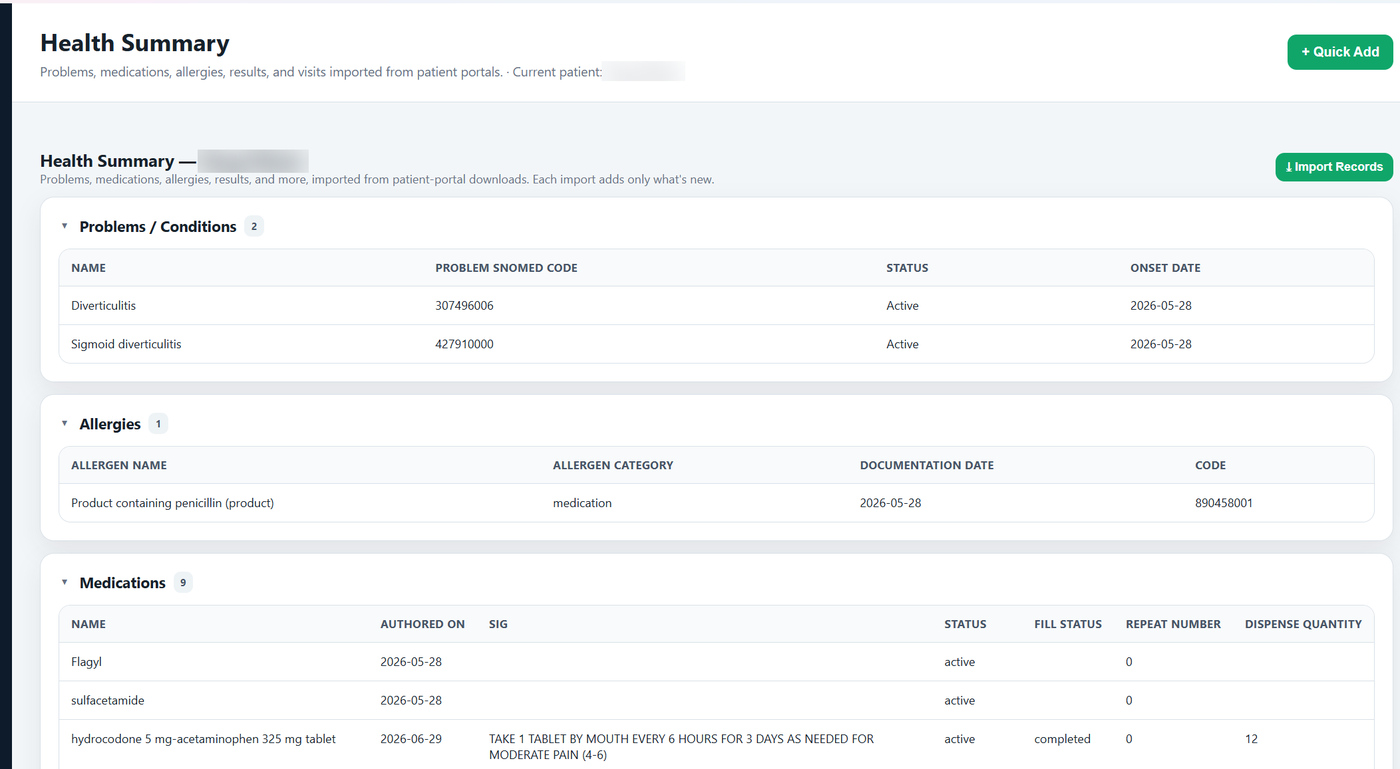
Your problems, allergies, medications and test results, all in one place. Abnormal results show in red. - Repeat for every doctor's office and hospital on your list.
Where everything goes
| In HEM, click… | To find… |
|---|---|
| Health Summary | Problems, allergies, medications, test results, vital signs, history |
| Medical Records | Visit notes, hospital discharge summaries, lab and imaging reports (click View), and the PDF copy (click Open PDF) |
| Master Ledger | Each checked visit, marked Awaiting EOB, ready for the bill and insurance amounts |
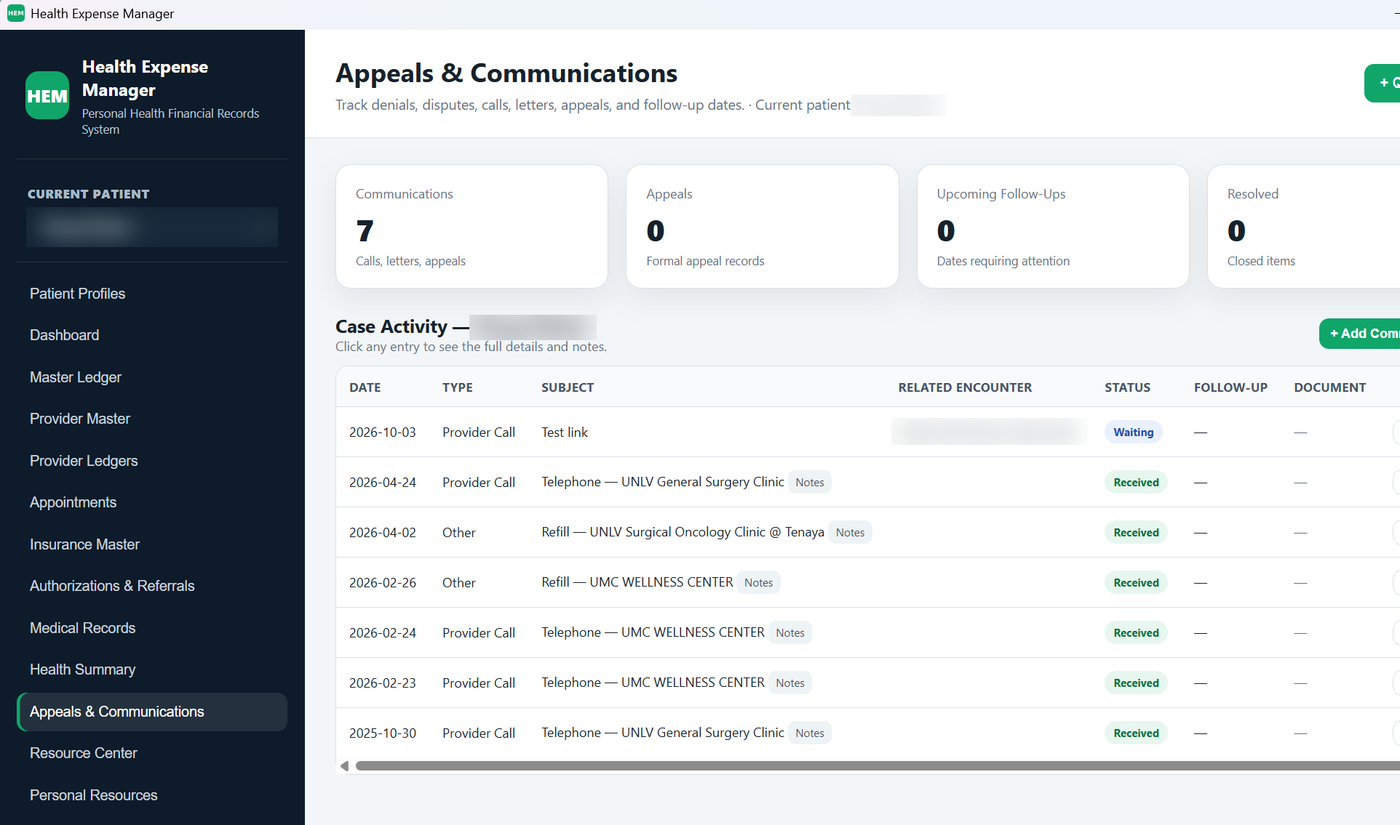
| Appeals & Communications | Phone calls and refills, with the notes the office wrote |
| Provider Master / Insurance Master | The office or hospital, its doctors, and your insurance plan |
10. If something didn't work
"No Health Summary Found"
The file you picked was a PDF or a different kind of file. Go back to the portal and download again, choosing XML, Codified, or Both.
I can't find the file
Open your Downloads folder. Click Date modified at the top of the list so the newest file is first.
The zip asks for a password
Some portals protect the file with a password they show or email to you. HEM can't open password-protected files yet. Unzip it with that password first, then choose the .xml file inside.
It picked the wrong person
On the Ready To Import screen, change "Put these records in this patient's file." If you already imported, use Undo This Import on the Health Summary page and import again.
My portal has no download button
Call the office and say: "I'd like an electronic copy of my records as a C-CDA or XML file." They are required to give you access to your records.
It's taking a long time
Large hospital files can take up to a minute. Don't close HEM while it says "Importing…".
11. What the download leaves out, and how to get the rest
A portal download is a summary, not your whole record. It usually does not include:
- Bills: charges, claim numbers, payments. Get these from the portal's Billing or Pay My Bill page, and your insurance company's EOBs.
- Some full reports: operative reports, pathology, or the full wording of imaging results. Look in Clinical Notes, Pathology, and Imaging in the portal.
- Records from other places: a surgeon's office download won't include the hospital where the surgery happened. Download from each place separately.